Overview
Comments can be added to graphs and associated with either a specific point in time or a Y or X axis value.
- Point comments are useful for highlighting specific data or trends that occurred at a particular point in time.
- Y axis (Vertical) comments are useful for indicating threshold levels e.g. permanent wilting point, critical frost.
- X axis (Horizontal) comments are useful for highlighting significant events eg. installed at site, moved to new location, precipitation event.
Creating and Editing Comments
- Login to Wildeye
- Open the graph that you want to add a comment to
- Hover over the green comment button and then select the pencil icon

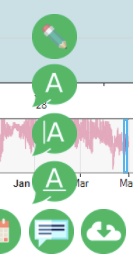
- Click on the options:
- Add vertical comment
- This makes a comment based on time. i.e. a meter was pulled for repair, an acid flush event occured
- Add horizontal comment
- This make a comment based on the data i.e. thresholds for temperature, management lines for soil moisture sensors
- Add Point comment
- This makes a comment at a specific point in time and data i.e. finding an event later to discuss with someone what might have happened
- Add vertical comment

- For a horizontal comment you will be able to pick a color above and below,
- Note: keeping in mind that these colors will overlap when setting up multiple comments, such as red and blue will make purple. Green and yellow will make orange.
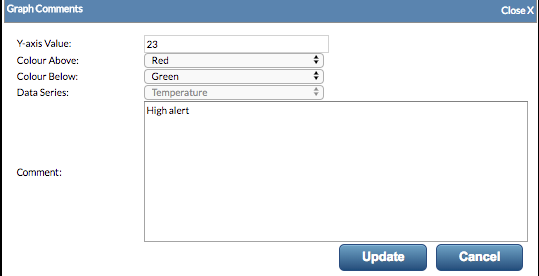
To Edit a Comment
- Click on the edit button
 for the comment that you want to edit.
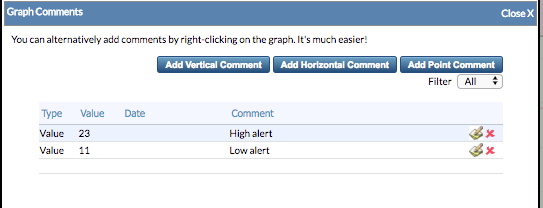
- Edit the value (position of the comment), the comment text and for the colors above and below (only for Y axis horizontal comments).
Deleting a Comment
- Hover over the green comment button at the bottom of the graph and then select the pencil icon
- Click on the delete button
 for the comment that you want to delete.
- Confirm that you want to delete it.